Two weddings land on the same Saturday and both want the good glasses. The question is never "how many glasses do I own", it is "how many are free on the 12th". Warehouse answers that one. It counts what you have, subtracts what is already booked for the date you are looking at, and shows you what is left.
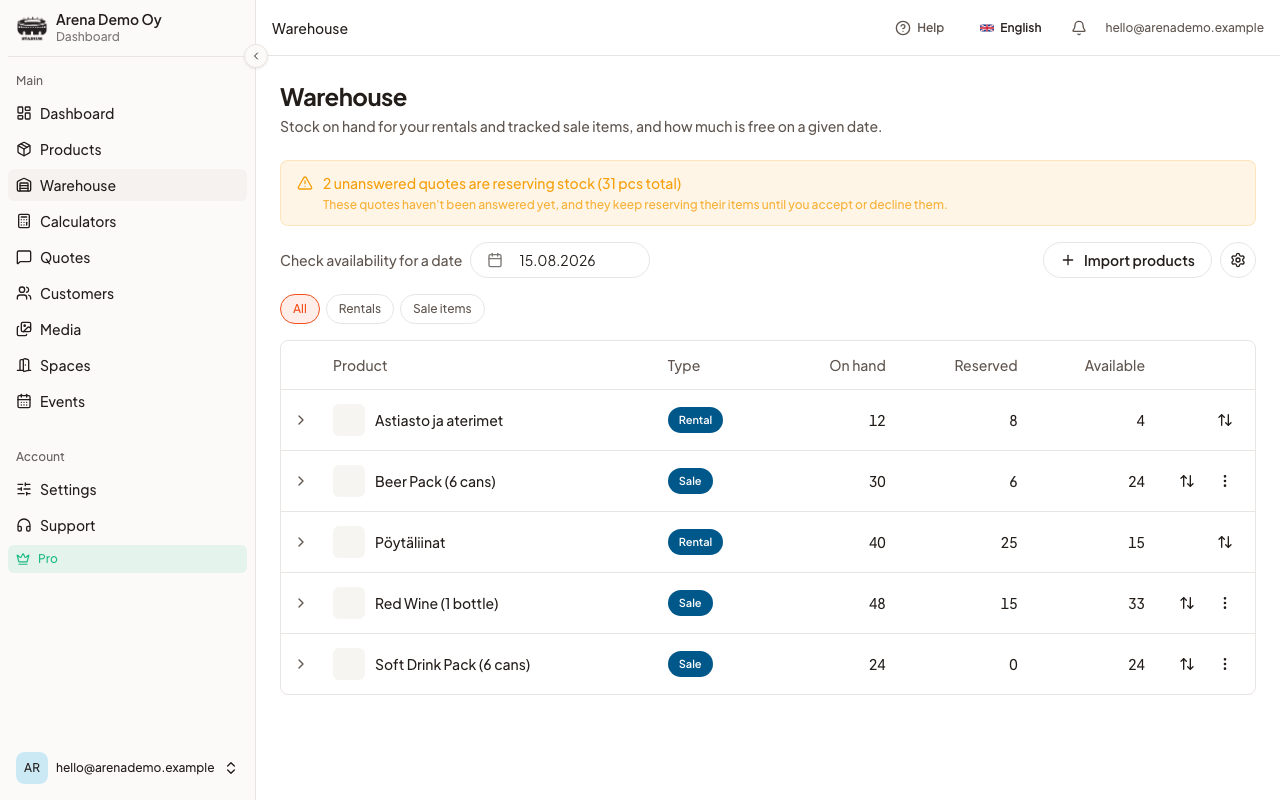
Reading the page
- Log in to CaterWay.
- Open Warehouse from the menu on the left.
- Check availability for a date at the top starts on today. Change it to the date a customer is asking about.
- Each row shows On hand, Reserved and Available.
For rentals the date matters, because bookings come and go. For sale items the numbers are the same whatever date you pick, since a sold portion does not come back.
The All / Rentals / Sale items filter above the table narrows it down when the list gets long.
Open a row for the detail
Click the arrow at the start of a row and it expands into the story behind the numbers:
- Turnaround (days), on rentals only, is covered in its own section below.
- Upcoming events using this product, so you can see exactly which bookings are eating your stock. You can nudge a single event's quantity up or down from here.
- Unanswered quotes holding this stock, which is usually the surprise. See the next section.
- Recent stock changes, a log of every movement with its reason: sold, restock, correction, or event cancelled and stock returned.
The unanswered-quotes banner
If quotes you have sent are holding stock, a banner appears at the top of the page telling you how many and how many pieces in total. If those quotes would take you past what you own, it says so plainly.
This is the honest version of a problem every caterer has had: you promised the same 120 glasses to three people and only found out when two of them said yes. A quote you have sent reserves its items until the customer accepts or declines. If you would rather it did not, that is a setting, see Warehouse settings.
Correcting a count by hand
Counts drift. Something breaks, something turns up in the back of the van, a delivery arrives.
- Click the adjust icon at the end of a product's row. Adjust stock opens.
- Use Decrease or Increase and type the amount. New total shows where you will land before you commit.
- Pick a Reason, either Restock or Correction.
- Add a Note if it is worth remembering why, for example "6 broken at the Koskinen wedding".
- Confirm.
Turnaround days for rentals
Glasses that come back on Sunday night are not ready to go out again on Monday morning. Open a rental's row and set Turnaround (days) to the number of days you need for washing, transport, or drying. Until those days pass, the items are not counted as free again, so the calculator will not cheerfully offer them to somebody else.
Taking a product off the page
Open the row's More actions menu and choose Remove from stock tracking. The product disappears from Warehouse but keeps its balance, so importing it again later restores the number rather than starting from zero.
Good to know
- Warehouse is a Pro feature, along with per-product tracking for sale items and the date-aware availability the page is built on.
- Nothing appears here until a product is set to track stock. See Get a product onto the Warehouse page.
- The numbers here are counts of items, not money. Margins live on the product itself, under Cost price and margins.
Was this article helpful?